
Welcome to our new membership software system!

With Amilia SmartRec you can...
- Easily explore, register and pay for classes and programs
- See your and your family members' schedules at a glance
- Update your own account information, including credit card(s)
- View each family member's activities, memberships and billings, including past and due payments
All members and users are required to activate their account in the new system.
Follow the steps below to ensure a smooth and easy transition!
If at any point you are having trouble, you can scroll down to find helpful troubleshooting videos.
What You Need to Do Now:
Claim your account
If you haven’t already, activate your Amilia account using the “Welcome to Amilia on behalf of the Jewish Alliance” email sent from notifications@amilia.com. Check your spam folder if you don’t see it in your inbox.
Please note: Activation emails from Amilia are sent to the primary account holder for each household. If you don’t see the email, another member of your household may have received it.
Select "Create Account" on the invitation email sent by Amilia.
The email account you use to create your Amilia account must match the one associated with your JCC Membership.
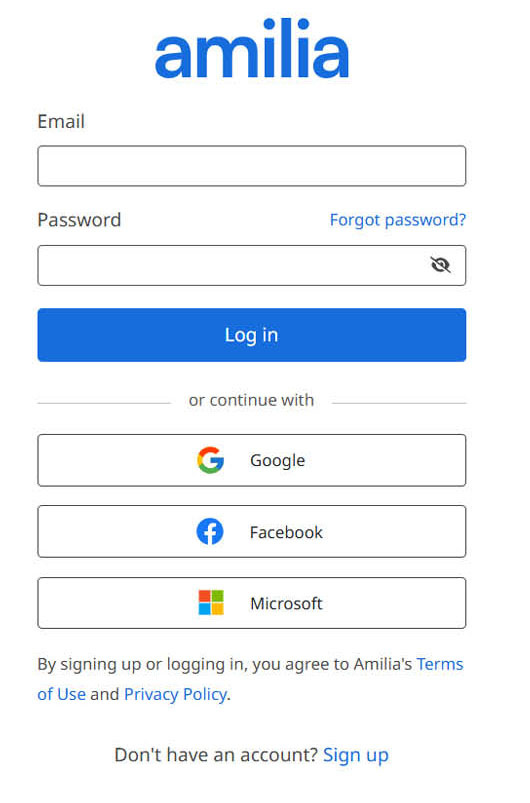
Once you are logged in:
Verify and update your personal information Review your profile for correct name, address, date of birth, phone, and email.
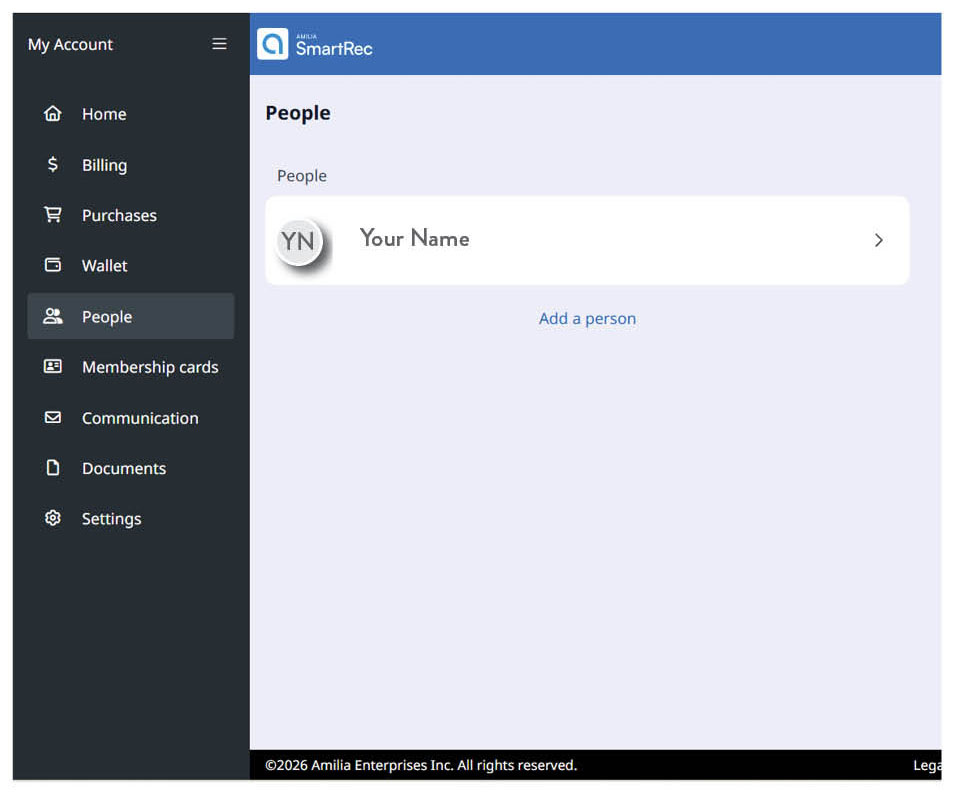
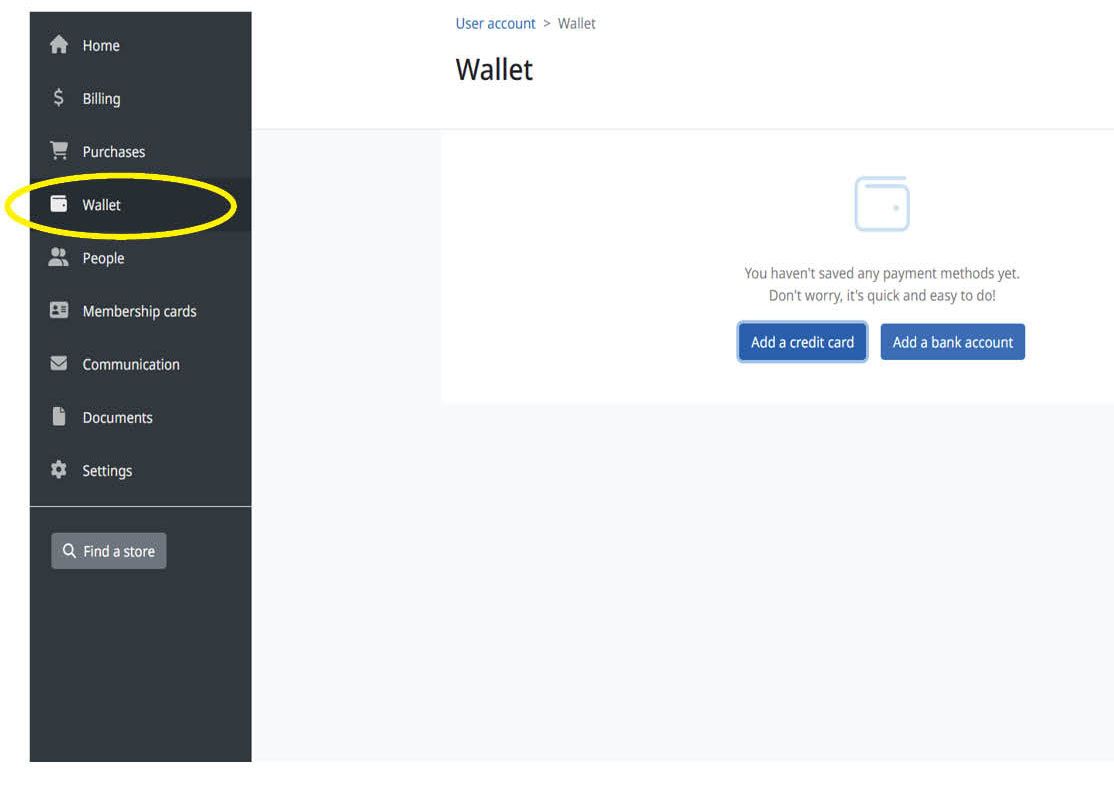
Set Up Your Amilia Wallet:
Add a payment method to your Wallet and save your payment method.
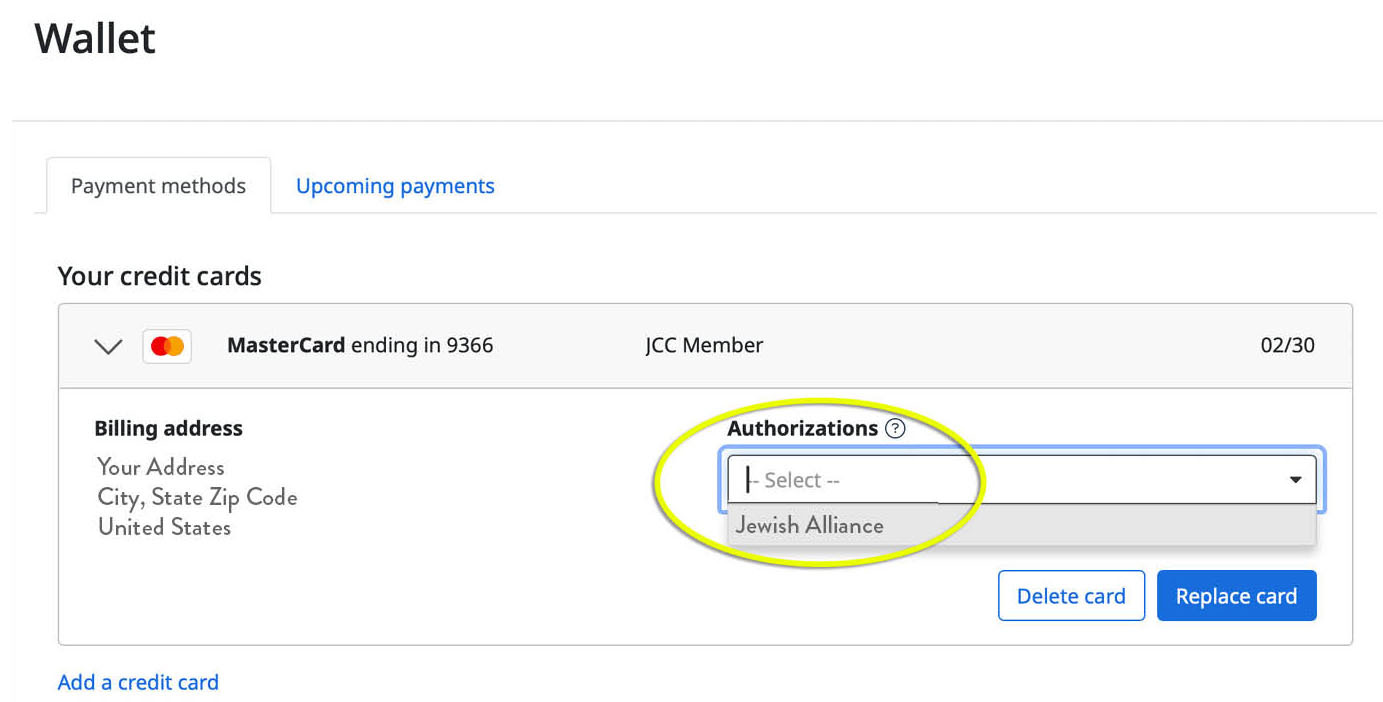
Once you save your payment method, click back on the saved payment method, an authorization box will appear, please select the Jewish Alliance. The authorization will then autosave.
Not permitting authorization may result in membership or program disruptions.
Setting Up Additional User Access:
If you have a multi-person account and would like other adults to have their own login credentials:
- The account owner logs into their Amilia account and selects the People tab.
- Choose the person’s name from the dropdown or click Add a person if needed.
- Click the ellipses (…) next to their name, scroll down to the bottom of the page under Account Actions to invite.
- Click Send invite. They’ll receive an email to create their own login.
- The invited member must click Create an account in the email to set up their username and password.
Additional Notes and resources:
Download the Amilia app to access your virtual JCC card, view your activity calendar, and manage registrations on the go.
Click here for instructions on how to download the app.
Troubleshooting Videos:
Our Amilia Team is available to assist with account setup and Amilia app downloads if needed. Contact us at amilia@JewishAllianceRI.org.